Step-by-Step Guide: Navigating rekuiper with the Management Console UI
This document describes how to run the cookbook examples with rekuiper. Before you run the examples, install rekuiper.
You can define rules with SQL in the example scenarios. You can manage and execute rules with the rekuiper manager UI, the REST API, or the command-line interface.
Data Preparation
Each example includes sample input data. You can also supply custom data. If you have active data sources, you can record live data to a file through a rekuiper rule and replay that file in the examples.
Record Data
rekuiper supports diverse source protocols and provides a File sink. You can save live stream data to a local file through a rule. For example, you can record MQTT data with the rekuiper manager UI. Before you begin, install and configure the rekuiper manager.
Create Data Source: In the management console, click Source to open the stream management page. Click Create Stream. Set the stream name to
mqttDemoStream. Select stream typemqtt. Set the data source (MQTT topic) todemo/#. If you require custom connection parameters, click Add configuration key. Click OK to save the stream. The stream subscribes to MQTT wildcard topicdemo/#.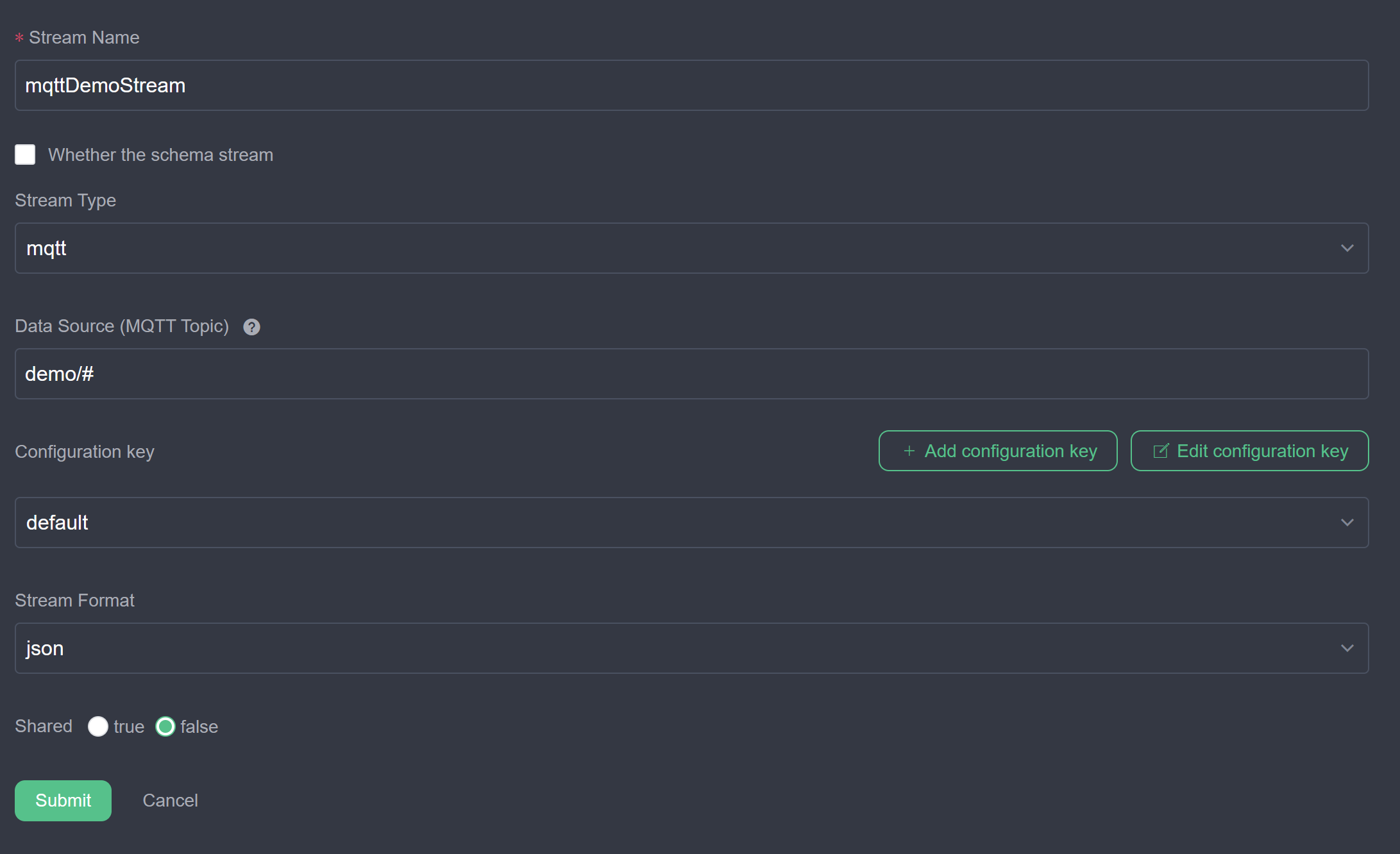
Create and Run the Rule: In the navigation bar, click Rules. Click Create rule. Enter the Rule ID, Rule Name, and SQL statement.
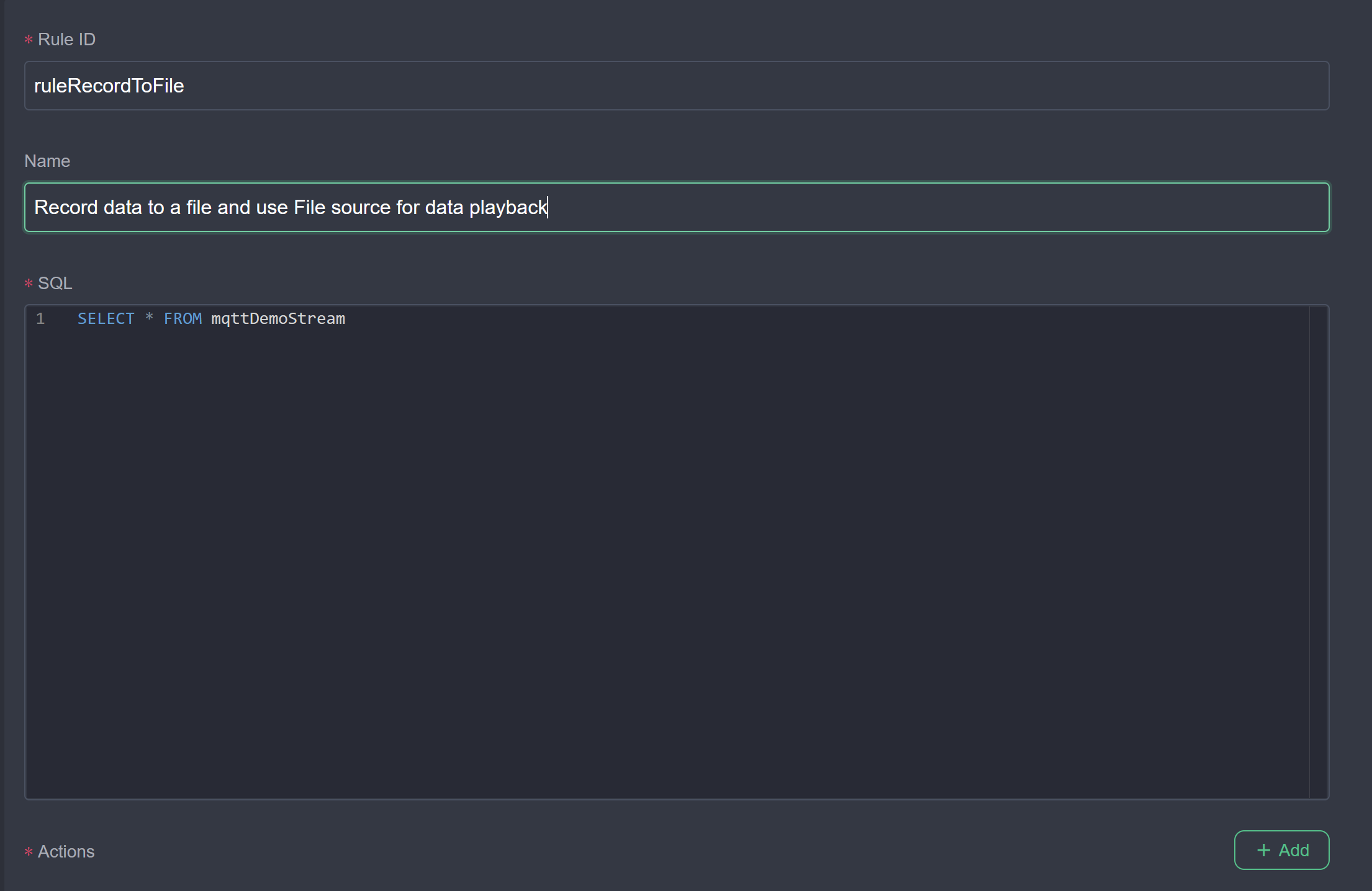
Under Actions, click Add to configure the sink. Select sink type
file. Set Path of file todata/mock.lines, set File type tolines, and set Check Interval to10000. The sink writes incoming messages todata/mock.lines.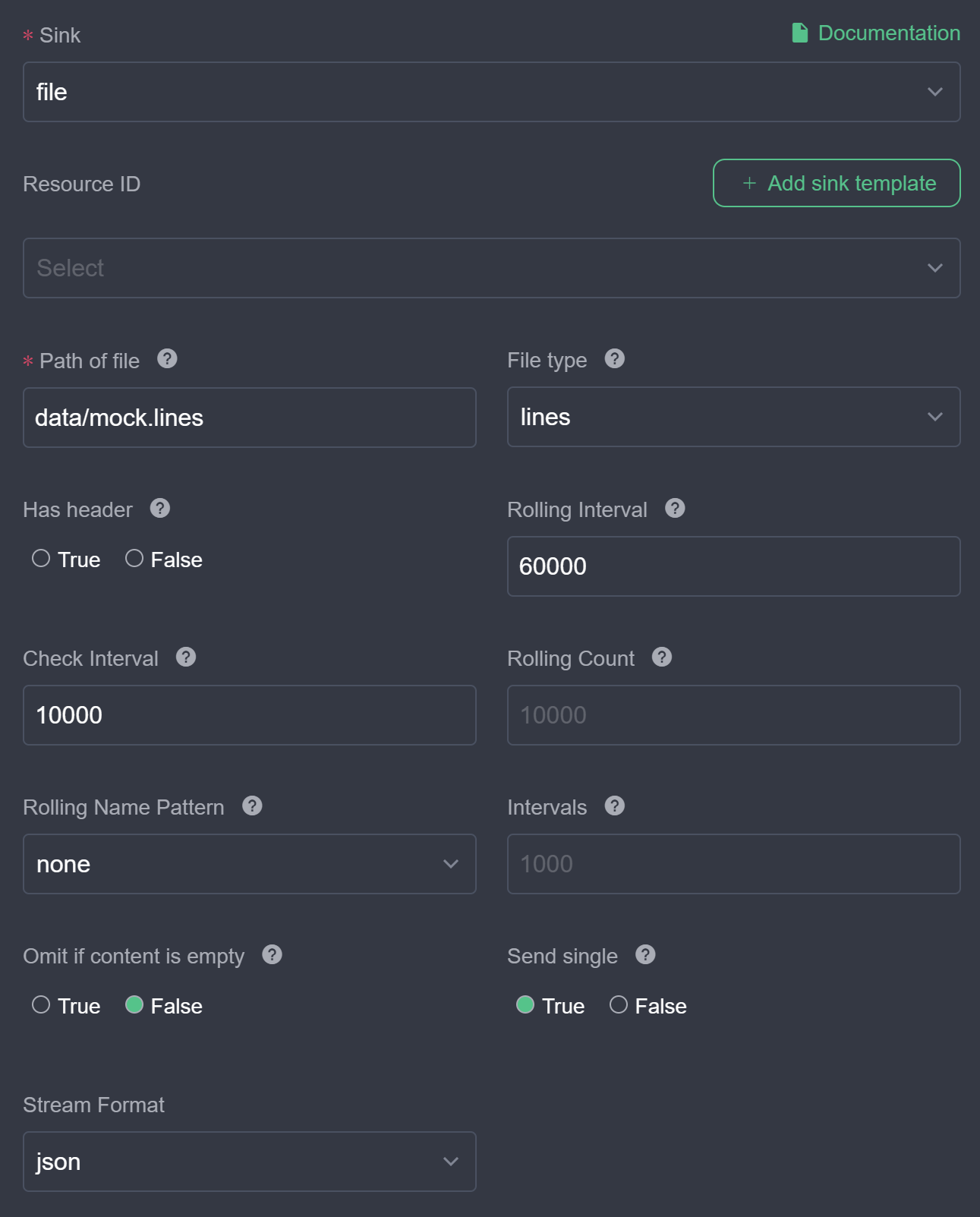
Click OK to save the rule. On the rule list page, verify that the rule status shows Running. Click the status badge to confirm that the rule receives and processes messages.
Inspect Data: The rule writes output lines to
data/mock.lines. The file stores one JSON string per line. You can view or modify the file in any text editor.
Run Examples
For testing and debugging, use a File source as input. When the example executes successfully, replace the File source with your production source.
Most cookbook examples follow these conventions:
- The rule reads from a File source stream named
demoStream. This setup lets you replay recorded test data easily. - The rule publishes results to an MQTT sink topic:
result/{{ruleId}}.
Follow these steps to run an example in the management console:
Prepare Data: Copy sample data from the example page into a text file, or record live data.
Upload Data: In the management console, click Configuration. Open the Files Management tab. Click Create File and upload your data file (such as
mock.lines).Create File Stream: In the navigation bar, click Source. Click Create stream. Set the stream name to
demoStream. Select stream typefile. Set the data source to the uploaded file name.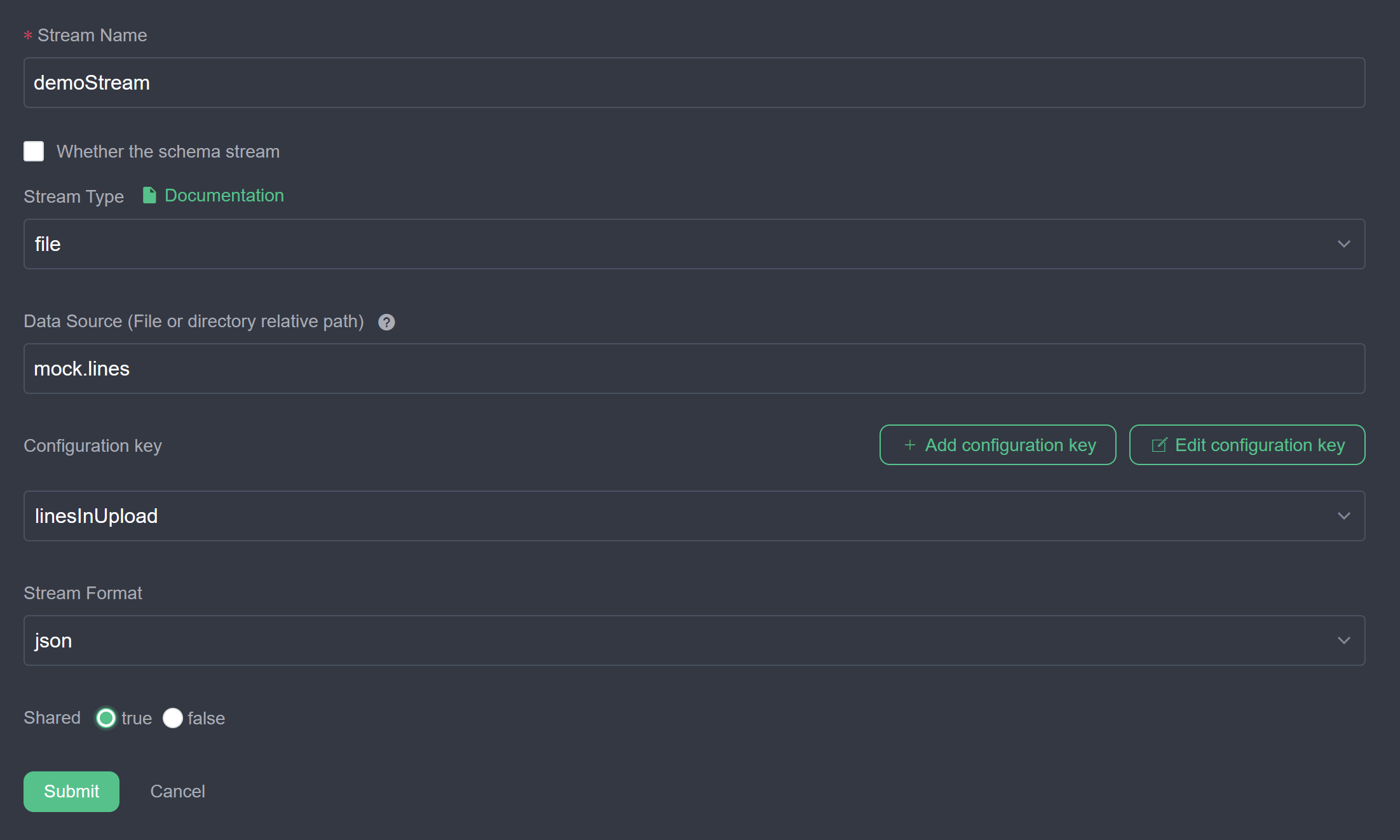
Click Add configuration key. Set File path to the path of the uploaded file.
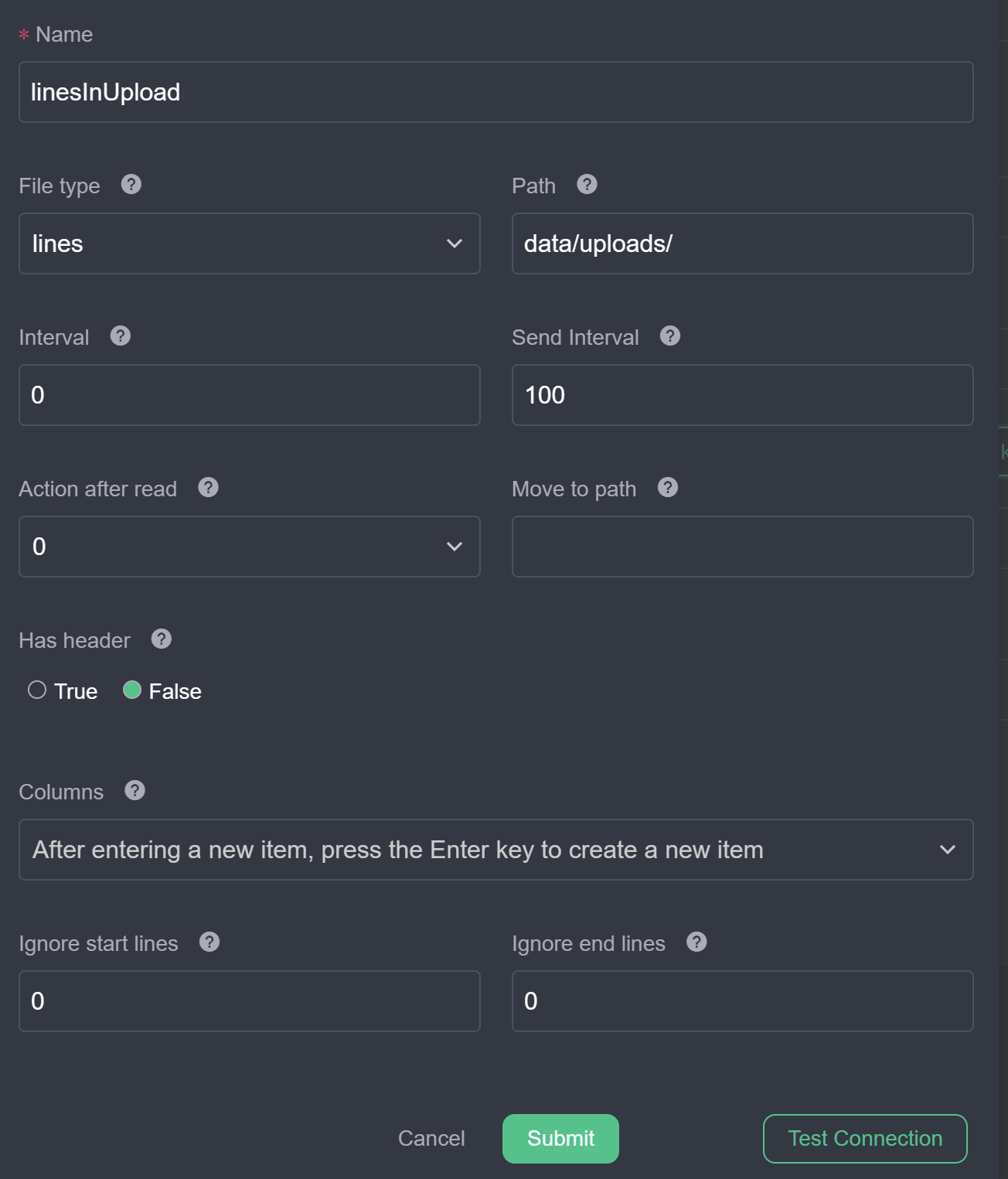
Click OK to create the stream.
Subscribe to Result Topic: Open an MQTT client such as MQTTX. Subscribe to the topic
result/{{ruleId}}to view rule output.Create Rule: In the navigation bar, click Rules. Click Create rule. Enter the Rule ID, Rule Name, and the SQL query from the specific example page.
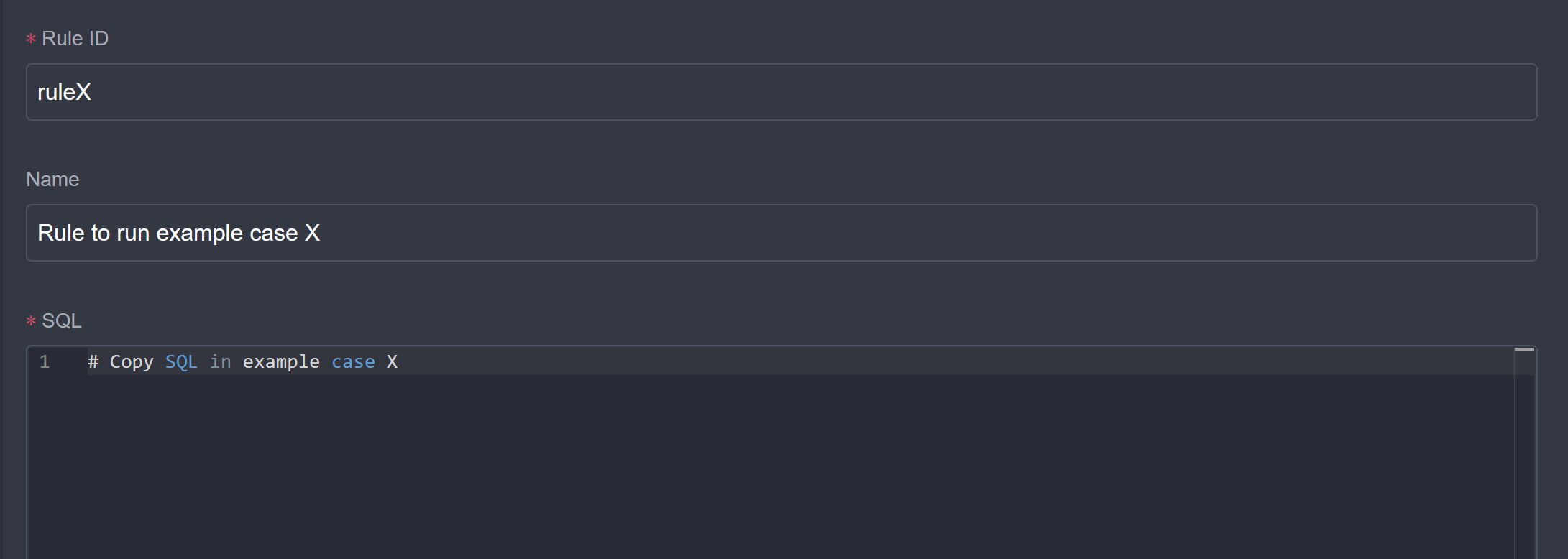
Under Actions, click Add. Select sink type
mqtt. Set the topic toresult/{{ruleId}}.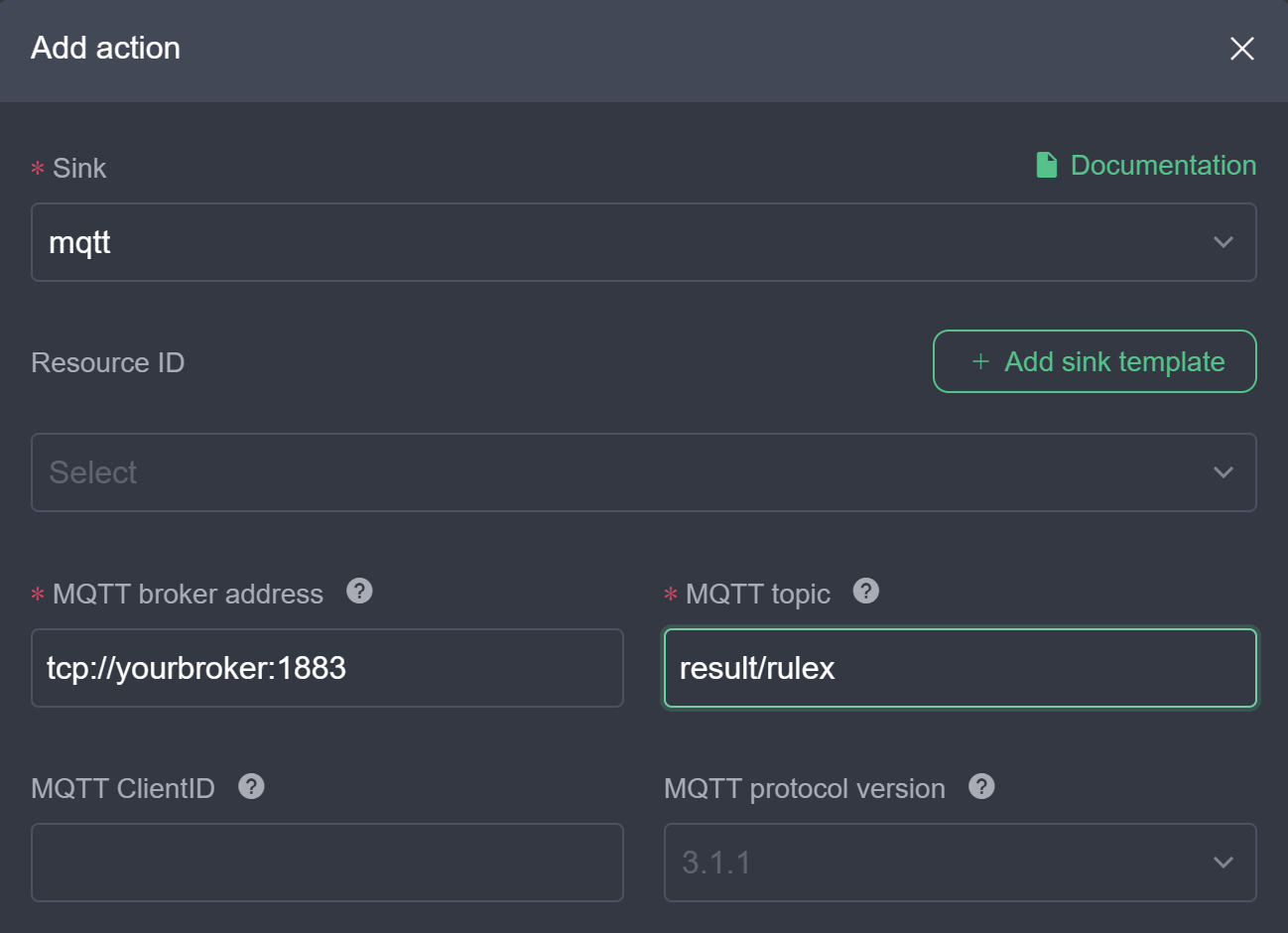
Click OK to save the rule. In the rule list, verify that the rule status displays Running. Click the status badge to verify message reception and processing.
Inspect Output: View the rule results in your MQTT client.
Summary
This document describes how to execute cookbook examples with the rekuiper manager UI. You can also use the REST API or the CLI to deploy streams and rules. You can adjust the example SQL queries to test custom processing logic.